
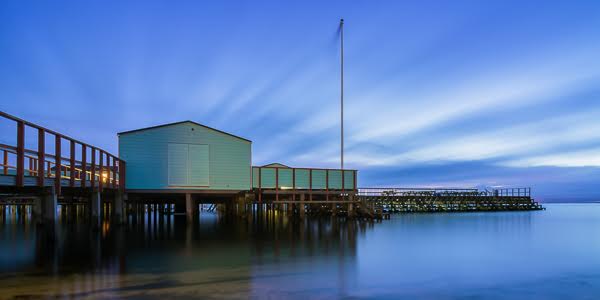
I was going through the tremendous Photodoto photo pool over at Flickr and found a great photo by photographer Remco Douma:

What makes this photo really neat though, is how he modified it from the original to create a specific mood. The processing steps he took are simple to do, yet create a powerful new image with a completely different feel from the original. It’s a great example of how learning to “develop” photos in the digital darkroom can really pay off.
Here are the simple steps Remco took to transform the bright photo below into the gloomy version at the top of the article. Give it a try with one of your photos and share the results in the Photodoto Flickr group or in the comments.

- Duplicate the background layer.
- Apply a 10 pixel gaussian blur to the duplicated layer and set the blend mode to Overlay, Soft light or Hard light (depending on the image). This creates a soft-focus effect that already makes the image more powerful.
- Change the image mode to gray scale then to duotone. Choose black and another color to adjust the mood you want to create.
- Play a bit with curves to modify the contrast as desired. Usually you’ll want to increase the contrast after a black and white conversion.
Check out more of Remco’s photos (a Dutch guy living in Punta del Este, Uruguay) at Flickr.







Good – simple – tips. The blur overlay alone gives photos a great mood, but when combined with a duotone conversion you’re bound to hit a mood that strikes you right. Thanks for keeping it short and simple.